Coding in Quiet: How I Solved Slack Noise as a Developer


We’ve all been there: deep in debugging, mental model fully loaded, about to solve that tricky issue. Then: DING. A Slack message pulls you out of flow. Even if it’s not urgent, the damage is done. That thread you were holding in your head? Gone. Rebuilding that context takes 15-20 minutes.
One day I checked my Mac’s Screen Time report and saw something shocking: Slack was consuming hours of my day. Not because I was having productive conversations, but because constant notifications kept fragmenting my focus. Each interruption reset my ability to do deep work.
Try this experiment: Tomorrow, count how many times Slack interrupts you during focused work. You might be surprised. The research in The Math of Why You Can’t Focus at Work shows that even a few interruptions per hour can destroy your productive time.
Why Slack Interruptions Kill Your Productivity
Chat apps are supposed to help us communicate, but constant notifications make you feel like I need to check this right now. Each DING breaks your concentration, even if the message isn’t urgent. This consumes your focus, leaving little mental space for deep, complex work.
As a technical lead who still codes, this was unsustainable. I was becoming reactive instead of proactive, responding to notifications instead of focusing on the architectural decisions and deep work that actually moved projects forward.
The real issue isn’t the number of messages. It’s the interruptions. Even one notification during a 25-minute focus block destroys your flow state. It’s not just the 30 seconds to check a message, it’s the 15-20 minutes to rebuild your mental model afterward.
I needed a system that would let me stay responsive without being constantly interrupted.
My 3-Step Slack System for Team Leads
After years of experimentation, I found a system that works. Here’s the complete framework I use to manage Slack noise without missing important messages:
Step 1: Set the Foundation
- Establish async expectations with team
- Use Slack status to communicate your “Focus Time”
Step 2: Configure for Focus
- Silent notifications
- Custom sections ordered by priority
- VIP list for direct reports + stakeholders
- Disable red dot badge (Mac)
Step 3: Build the Workflow
- Reminders for non-urgent messages
- Scheduled review times (not reactive)
- Focus mode during deep work blocks
Let me walk you through each step in detail.
Step 1: Establishing Expectations for Asynchronous Communication on Slack
The foundation of this entire system is simple: Slack is for asynchronous communication, not a hotline to your immediate attention. Once you internalize this, every other tactic becomes easier to implement.
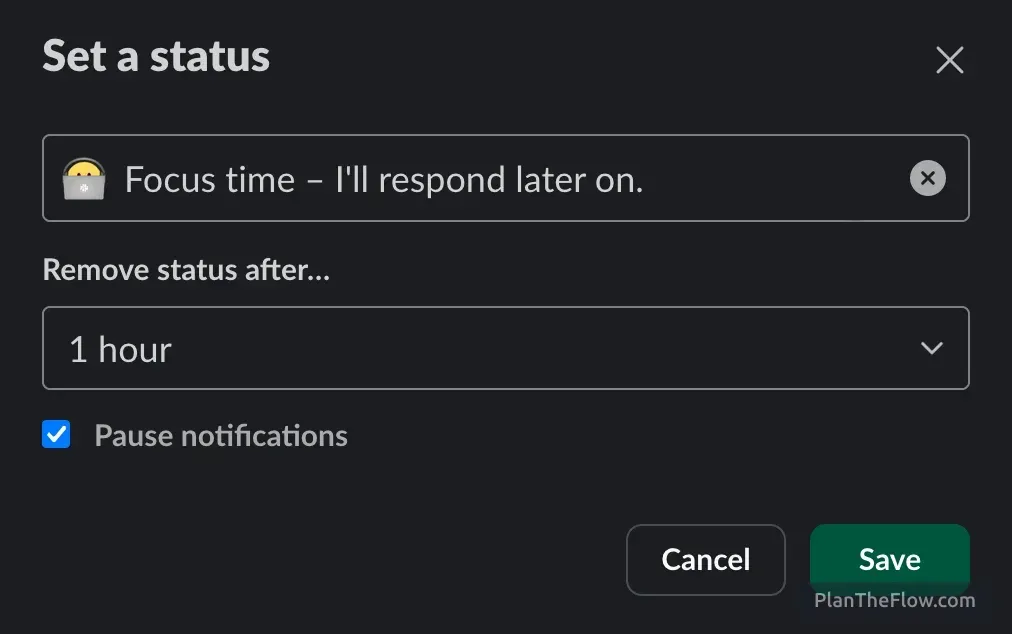
If you’re managing a team, create a culture where focus time is normal and expected. I lead by example: when I block time for deep work, I set my status accordingly and my team sees it’s standard practice. This isn’t about having a formal conversation. It’s about openly demonstrating that protecting focus time is how we work.
Keep in mind that this has to be done openly. Some people are expecting instant replies and might get the wrong idea of why you’re not responding while having “active” status. The most straightforward tool to inform them is to set up a proper status icon and description.
Step 2: Configure Slack for Maximum Focus
With the foundation in place, it’s time to configure Slack itself. Understanding the primary function of each communication tool is key. Once that’s established, it’s crucial to customize the notification settings to minimize distractions.
Here’s how I fine-tune mine for better focus:
- Selective Notifications: I set Slack to alert me only for direct messages and mentions. This filters out the noise, allowing me to pay attention to what really matters.
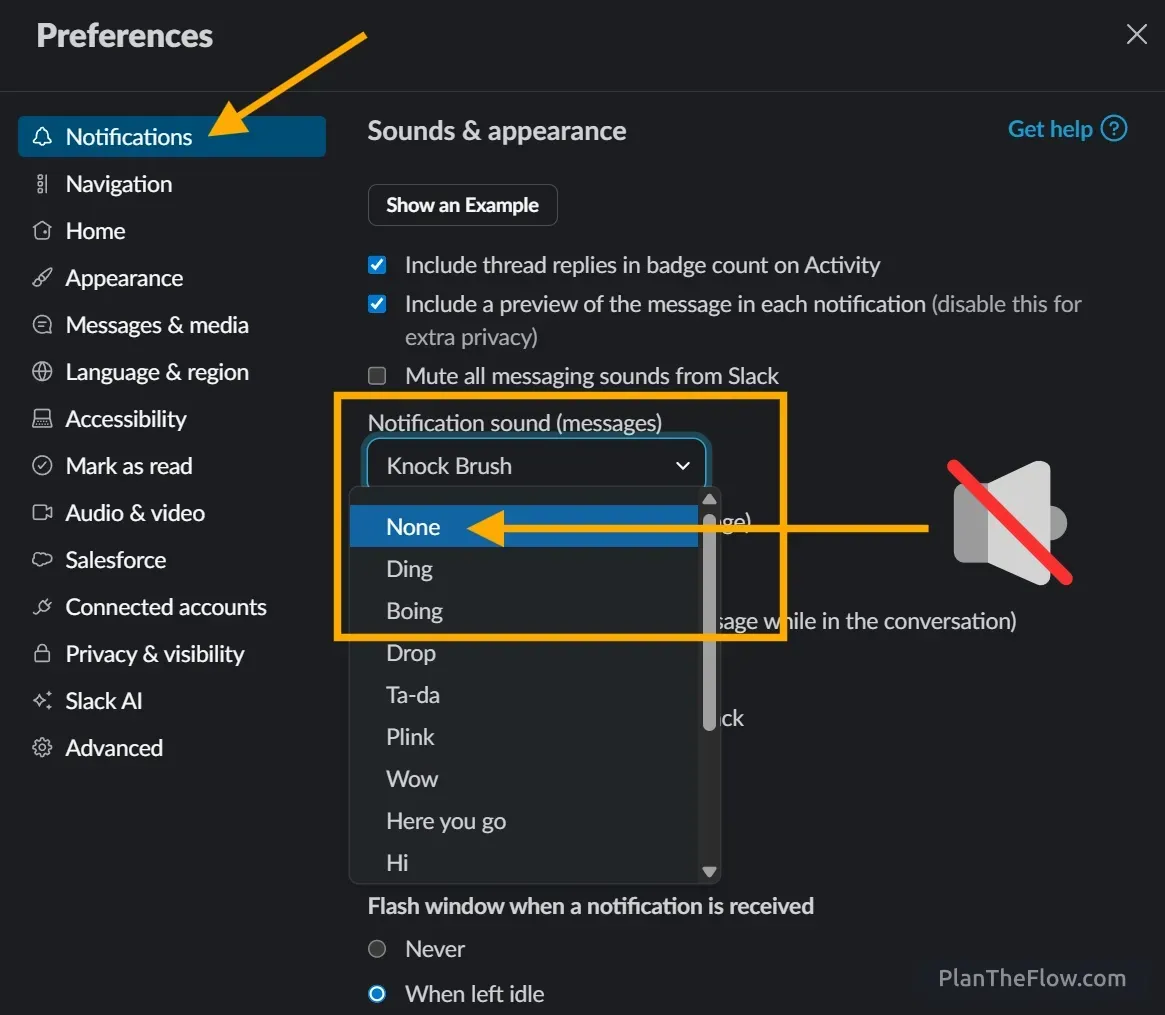
- Silent Alerts: I disable sound for all notifications. The visual indicator of notification is there if I take a moment to glance, ensuring I don’t miss anything critical without constant sound interruption.
- Slack Notifications on Mobile: I turn these off completely. This ensures my phone doesn’t pull me away from deep work sessions. When I grab my phone, it can lead to accidental doomscrolling pretty quickly. Learn more about blocking distracting content across devices.
Pro tip: Use focus mode of your Operating System!
Additionally to that, using OS focus modes is a life changer. I created a Shortcut for myself on Macbook, to set up 25 minutes deep work session. During the focus session, I don’t see ANY notifications from ANY app. The best thing in those modes is that I will not miss anything, as notification will wait for me once the session is finished. Async communication in a nutshell!
- Turn a Focus on or off on Mac
- Focus Sessions on Windows
- Focus/Do Not Disturb modes are also available on popular Linux distros, depending on desktop environment.
Quick Win: Silent Notifications on Slack
One surprisingly effective change I made was to turn off sound notifications for Slack. I still get the push notifications but without this attention stealing KNOCK KNOCK KNOCK sound screaming into my ears. This minor tweak has made a huge difference.
How It Works: When I’m coding and deeply focused, I usually don’t even notice the silent notifications popping up. This is exactly what I want: I’m not pulled away from my work. If something urgent comes up, I’ll see the red badge with a number on the app icon during my next scheduled break or when I naturally shift tasks, which is usually within the next hour. This way, I don’t disrupt the flow of communication with my team, but I also don’t let it interrupt my focus.
This approach has been a game-changer. By removing the immediate, reflexive need to check Slack at every ding, I’ve found more peace and productivity in my workdays. It’s a simple step that any developer can implement right away, and it’s helped me balance the need for team communication with my need for uninterrupted coding time.
Mac: Disable the red dot on the Slack icon
Slack can show two things on the icon: one is a number badge with a red background, and the second one is just a dot with a red background.
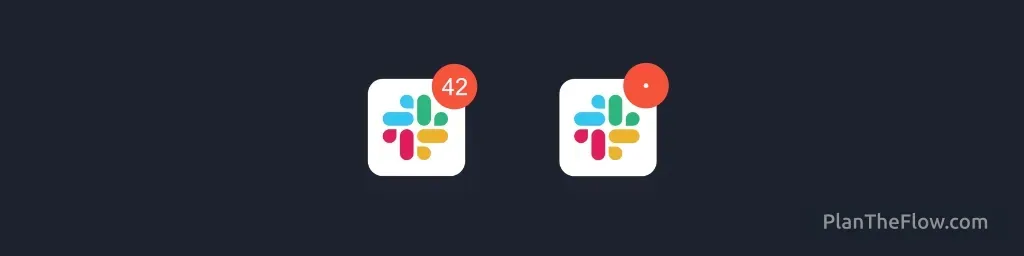
The dot was annoying for me as it was ALWAYS THERE! As mentioned, I have dozens of very active Slack channels at work, so whenever something happens, this badge grabs my attention, urges me to check what is happening.
I want to know when someone really writes to me, not when anyone writes on any channel.
The solution is to disable the red dot badge but keep the number badge. When someone writes a direct message to me, I will see a number on my Slack icon. Otherwise, the icon is clean.
To do it go to Preferences, Notifications and Below Sound & appearance, uncheck Show a badge • on Slack’s icon to indicate new activity.
This setting is only available on Mac, on Windows and Linux the icon behavior is a bit different
Step 3: Build Your Daily Workflow with Reminders
Even with less aggressive notification settings, navigating the digital workplace means constantly dealing with incoming messages that require a follow up action.
While not all of those actions are urgent, ignoring them isn’t an option either. I’ve discovered a strategy that allows me to maintain focus on my current tasks while ensuring nothing disappears in chaos of the day.

My go-to solution is utilizing Slack’s reminder feature. I use it a lot. It enables me to mark important messages for later attention, recognizing their importance without allowing them to interrupt my current flow.
How do I use Slack reminders?
Integrating reminders into my daily routine involves a few key steps:
- Set Reminders: Upon receiving an important but non-urgent task, I immediately set a reminder for it in Slack. I don’t even need to set the deadline, I click “Save for later”.
- Utilize the “Later” Section: These reminded tasks are then automatically sorted into the “Later” section. This acts as my personalized to-do list, which I can attend to at the right time.
- Flexible Review: Instead of scheduling specific times, I review the “Later” section when I take a break from current tasks or in between meetings, during times reserved for “shallow” work.
⚠️ Danger: Make sure to review the “Later” section at the end of the day or at least once a week. Things saved there are often messages that are nice to read or not-important, not-urgent. If you keep ignoring them long enough, you will stop trust in the “Later” section and keep storing unimportant things there.
For me, the best approach is to review it and if something is blocked or not important just move it to other system, either your to do app or to your notes (or just delete that reminder without hesitation).
👉 Keep the “Later” section clean, if something is there it’s a call to action.
Benefits:
- Minimizes Task Switching: By using reminders, I stay engaged with my current work, avoiding the mental strain associated with frequent task switching.
- Guarantees Task Completion: Reminders give me the confidence that no critical task will be overlooked, freeing me to concentrate fully on the task at hand.
- Organizes Tasks Effectively: The “Later” section serves as a centralized hub for tasks awaiting my attention, keeping them organized and ready for when I’m available to tackle them.
With reminders, every significant task is taken care of in due course, allowing me to remain focused and efficient on my current projects.
Grouping and Ordering Channels by Priority
Another critical part of Step 2 is organizing your sidebar.
After experimenting for years with my noisy Slack in a big company with hundreds of channels, I finally found a setup that works for me. I required a bit of understanding of what is important and requires attention, and what can be read once per day or week (or never?).
First, I grouped and ordered channels by topics in custom sections:
- team-related channels,
- department-related ones,
- my office location,
- topics and initiatives that I’m involved in, but not related to my current organisational hierarchy
- all other channels.
After grouping similar channels, I manually ordered the navigation bar. Groups that require my attention the most are at the very top - like team-related channels, then a wider circle of department and so on.
Thanks to this approach, I can immediately see when a message is waiting in an important channel. When I have some spare time or “shallow work” window, I simply scroll down and check what’s happening in the rest of the company.
For channels that don’t require my attention, but I also don’t want to leave them, as from time to time I have to ask for help or assistance there I simply mute them. Thanks to that, those are never highlighted and don’t scream for my attention. Those also don’t appear on “unread” view (described below).
I learned that custom sections is only available on a paid plan. In a free plan, you are limited to Starred section.
VIP Feature
It’s possible to add the closest coworkers to the “VIP” group. Thanks to this little feature, you get a few perks. Their direct messages are always on top. You can silence notifications for everyone except VIPs with a single click.
Here is a cool article how the Slack team designed the VIP feature: Raising the Volume Quietly by Carla Gonzales.
Alternative Workflow: The Unreads View
If you prefer an email-style workflow, there is a special view in Slack that allows to read messages on all channels in order of arrival. From this view, we can decide if it is important enough to keep it as “unread” or just mark it as “read” and not bother with this message anymore. It behaves a little bit like an email client. It’s possible to display the content of unread messages and decide if you keep each one of them in the inbox or archive.
Note: This workflow might work well in a small company or if your Slack has minimal noise. But if you’re reading this article, you probably already have too much noise for this approach to be sustainable.
⚠️ Danger: This view is addictive. I work with dozens of active channels that are constantly flooded with new content. I tried to keep my “inbox zero” using this view and I spent way too much time keeping my “unreads” clean. So, I ended up disabling this feature completely. Depending on your environment and “noise” that your Slack is generating, this might be useful; that’s why I kept this section.
The Unreads view might not be enabled by default in your Slack. Here are instructions on how you can enable the Unreads view:
- Click your profile picture in the sidebar.
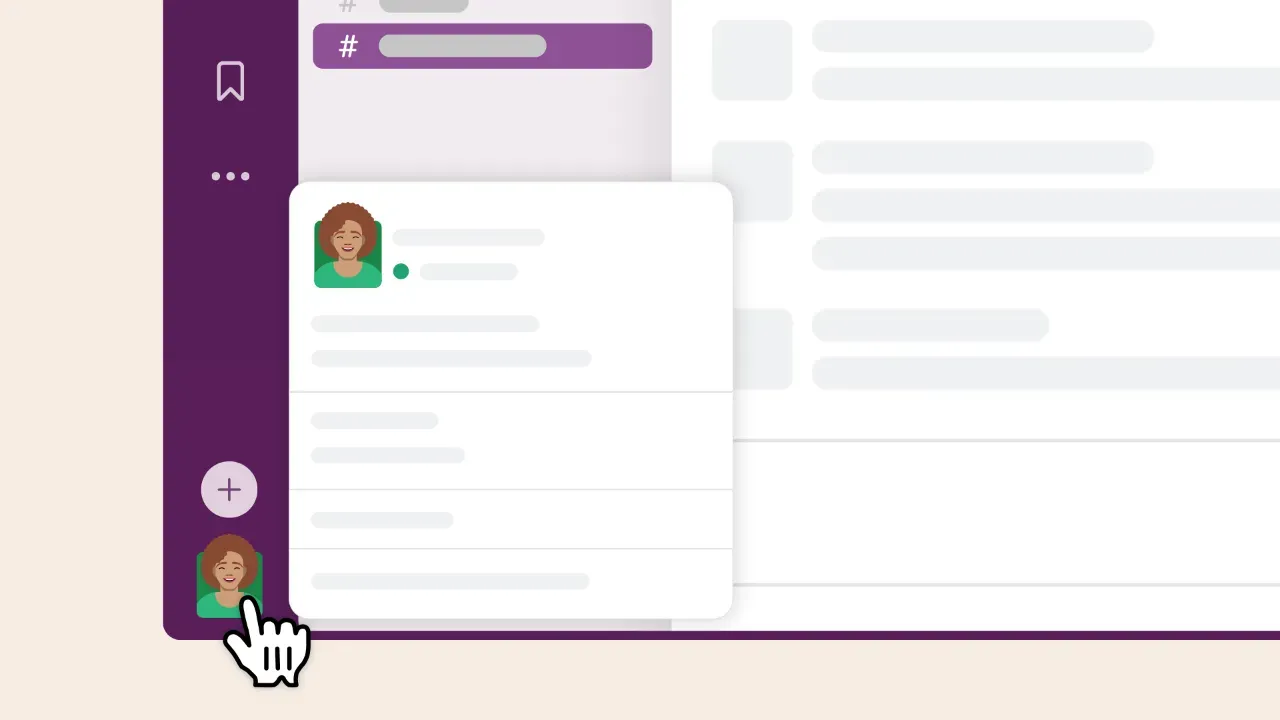 (image from Slack.com)
 - Select Preferences from the menu.
- Click Home.
- Under Always show in the sidebar, check the box next to the “Unreads” item.
Pro tip: Navigate with arrow keys and mark messages as “read” using the Esc key. More about shortcuts and mobile features of this view can be found in the Slack help article.
What Actually Worked: A Small Win
After implementing this system, I noticed something interesting about the Unreads workflow. Having it active meant I constantly checked it, refreshing to see if there were new unread messages. It didn’t bring any value except noise and anxiety about keeping things clean.
So I disabled the Unreads view completely and relied on my ordered channel sections instead. This was a bigger win than I expected.
I shared this observation with my teammate during a 1-on-1. She mentioned having the same issue: constantly checking Unreads, feeling like she needed to keep it at “zero.” She followed my example and disabled it too. The relief was immediate for both of us.
I share tips like this occasionally when they come up naturally in conversation, but the real lesson here is simple: systems that create artificial urgency aren’t helping you—they’re just adding noise.
The goal isn’t to process every message immediately. It’s to create space for focused work while staying available for what actually matters.
Related Strategies for Deep Work
Slack is just one piece of managing focus as a technical leader. Check out these related systems:
- How to block distracting content across devices - Complement Slack settings with browser-level blocking
- Small changes that made our daily stand-ups more useful - Reduce meeting overhead to create more focus time
Want more focus strategies? Join the PlanTheFlow newsletter for weekly systems that help engineering leaders reclaim their time.
Stay strong, keep focused! 💪
Stay in the Flow – Explore More Stories

Knowledge silos create bottlenecks, burnout, and team fragility. Learn how to measure your team's bus factor and identify single points of failure.
How to optimize daily standups for software developers: transform boring reports to collaborative teamwork. My team's journey to boost productivity & engagement
Boost productivity by focusing on one key task per day. Try the free Focus Calendar tool to plan your tasks and track progress. Simple, effective, printable.