How to block distracting content across devices


After implementing these blocking strategies, I reclaimed 6+ hours per week that I used to lose to mindless browsing during “waiting moments”: compiling code, waiting for AI responses, during context switches between tasks, or simply when my cognitive load is overwhelmed. The key was finding the right balance between restriction and flexibility.
As a technical lead who still codes, has a side project and wants to be present for the family, I can’t afford those losses. In my previous post about reducing mindless scrolling, I covered why blocking distracting content matters. Here’s how to block “too attractive” content across all your devices.
The New Context Switching Trap: AI Assistant Waiting Time
Nowdays, there’s a new distraction pattern: while waiting for GitHub Copilot to generate code, Claude to finish a response, or ChatGPT to complete a suggestion, your brain seeks instant gratification. That 5-second wait becomes a “quick check” of HackerNews or Twitter.
Those “quick checks” compound, bring distractions and drain energy from the brain. Content blocking isn’t about discipline; it’s about removing the option during these micro-waiting moments.
What Is Content Blocking and Why It Matters
Blocking means that when you try to enter your favourite time-wasting website you will see a limited amount of information or nothing at all.
You might also be redirected to another website if you want:
- ✅ Inspiring quotes or motivational pages
- ✅ Call to action websites like “drink water” or “do 10 push-ups now”
- ✅ Your project stats dashboard to remind you of your goals
- ✅ Your email newsletter inbox to feed yourself with valuable content
💡 Pro tip: I redirect blocked sites to a custom page that reminds me to drink water or take a walk. This way, every time I try to procrastinate, I’m reminded to take care of myself instead. It’s surprisingly effective for breaking the doomscrolling cycle!
How to Block Distracting Websites on Desktop Browsers
Blocking on laptops/computers is the easiest thing. Just install the proper extension into your browser and setup correctly. I use LeechBlock NG extension. It is open-source and IMO best in class extension for all major browsers.
Why best in class? Because the number of configurations in that extension is more than expected. Multiple corner cases are covered like filters: “turn website blurry/black-white/dimmed instead of blocking” etc.
Step-by-Step: Configure LeechBlock for Maximum Focus
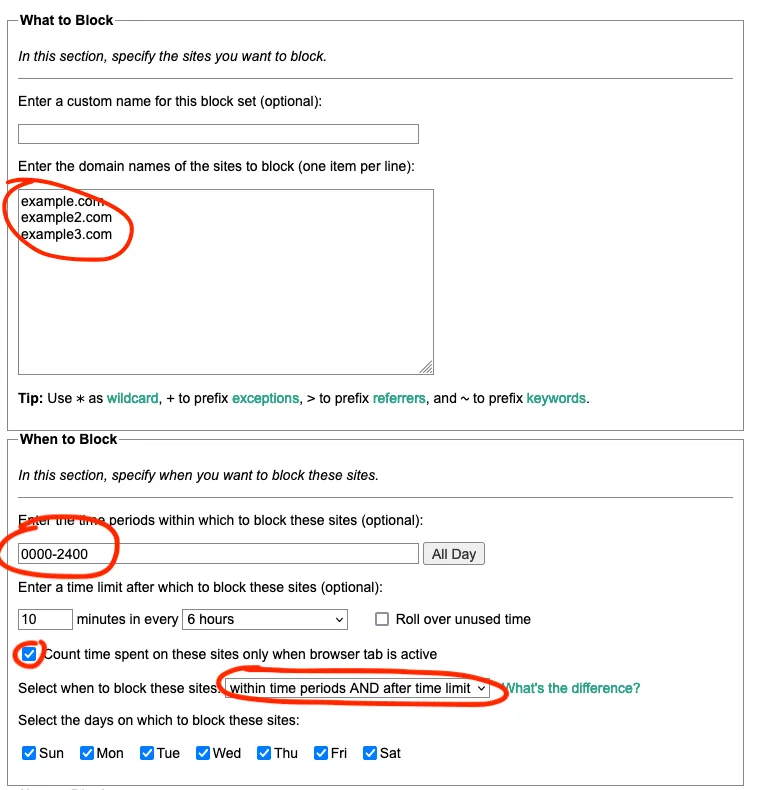
In the screenshot below I marked important sections to pay attention to.
- Domain names are all the websites that should be restricted,
- Time periods are when you want to block – usually I just select the “All day” button to always block,
- “10 minutes every 6 hours” option means that I give myself some time to enter those forbidden websites – e.g. when someone sends me a link and I desperately want to see it I have some buffer,
- Important setting: “Select when to block these sites ‘within time periods AND after the time limit’”. Otherwise, it would apply OR and in the case where the “All day” is selected my time buffer wouldn’t work.
🚨 Danger: Don’t forget to password-protect your LeechBlock settings (available in the extension options). Otherwise, you’ll be tempted to disable blocking during weak moments. Ask someone you trust to set the password for you.
Common pitfall: Blocking too aggressively leads to frustration and uninstalling everything. Start with 2-3 sites that waste most of your time, then expand gradually. The time buffer strategy (10 minutes every few hours) helps maintain this balance.
How to Block Distracting Content on Mobile Devices
Blocking on a desktop is easy. When it comes to mobile browsers it is much harder. There are lots of apps that can do it but for safety reasons, I don’t want to give any app permission to all network traffic on my mobile device. I was looking for a less intrusive solution.
Block Websites on Android Using Firefox Extensions
On Firefox for Android, there is a possibility to install extensions. This is great because I just installed LeechBlock and configured it the same way as on the desktop.
How to Block Websites on iPhone and iPad with Screen Time
Unfortunately, iOS browsers don’t support content-blocking extensions like LeechBlock. Here I used a built-in tool for content management.
- Launch Settings from the home screen
- Choose Screen Time
- Tap Content & Privacy Restrictions
- Toggle Content & Privacy Restrictions on
- Select App Store, Media, Web & Games
- Tap Web Content
- Choose Limit Adult Websites (despite the name, this setting lets you add any websites you want to block, not just adult content)
- Now inside Always Block you can specify websites that should always be blocked
The same mechanism is present on devices running macOS like Macbooks, Macs and also on iPadOS. On macOS, I recommend installing a browser extension though.
Here we don’t have any options regarding time limits. Once you put the website on that list it is always blocked. The good part of that is that it is not only blocked in the browser but also in in-app popup windows, which provides system-wide protection.
How to Measure If Content Blocking Actually Works
The only way to know if your blocking strategy is effective is to track it. Here’s what I monitor:
Weekly Screen Time Review: Check your device’s built-in Screen Time (iOS) or Digital Wellbeing (Android) reports every Sunday. Look for downward trends in social media and browser usage. I went to under 2 hours daily within a month (that’s still a lot, but I’m working on it).
LeechBlock Statistics: The extension tracks how many times you’ve tried to access blocked sites. Open LeechBlock settings and check the statistics page. High numbers mean you’re building new habits - your brain is being retrained.
Productivity Metrics: Track outcomes: tasks completed, deep work sessions, or projects finished. If blocking isn’t translating to more meaningful work, adjust your blocked sites list or time windows.
Don’t expect perfect results immediately. Give each configuration 1-2 weeks before making changes. The goal is progress, not perfection.
Take Action Now
Start with one device and 2-3 websites that waste most of your time. Test the setup for a week, then expand to other devices and sites. Remember: the goal isn’t perfect blocking, it’s creating enough friction to break automatic habits.
For more strategies on managing digital distractions, check out:
- My three content-blocking tactics with different blocking approaches
- Stop Doomscrolling Checklist for a complete digital detox guide
Want more productivity tips delivered to your inbox? Join the PlanTheFlow newsletter for practical advice on staying focused in a distracted world.
Stay strong, keep focused! 💪
Stay in the Flow – Explore More Stories
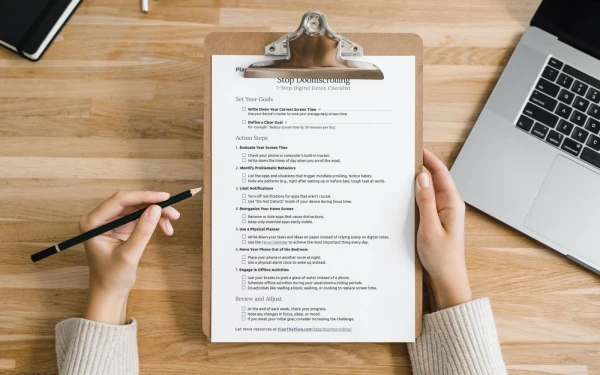
Follow this checklist to reduce doomscrolling and reclaim your time with effective digital detox strategies.

Boost productivity by focusing on one key task per day. Try the free Focus Calendar tool to plan your tasks and track progress. Simple, effective, printable.

This step-by-step tutorial guides you in creating your own cards, perfect for card-based project, like designing a board game or using Agile Poker Cards PDF.