Three content-blocking tactics to avoid careless scrolling


As a developer, I noticed a pattern: I’d open Tech Twitter (or Reddit) “just to check one thing” during a brief mental break, and 30 minutes later I’d be deep in comment threads. The problem wasn’t willpower. These sites are engineered to keep you engaged. Infinite scroll, algorithmic recommendations, notification badges. They’re designed by teams of engineers to maximize time-on-site.
So I treated it like a production incident: I identified the attack vectors and built defenses.
I tested three different content-blocking strategies over several months. One failed. One worked for specific situations. And one actually changed how I work.
Want a complete system? Grab my free 7-Step Digital Detox Checklist.
The Three Tactics I Tested
| Tactic | Result After 1 Month | Recommendation |
|---|---|---|
| Time limits (15 min/day) | Created more craving | Skip this |
| Grayscale mode | Works for videos, not text | Try for YouTube addiction |
| Complete blocking + buffer | a few hours/week gained | Best option |
Here’s what happened with each:
“15 minutes per day to saturate with content” tactic
This seemed like a reasonable compromise at first. Give myself 15 minutes per day to check Reddit or news sites, then block access completely.
The theory was sound: I get my “fix” without losing too much time.
What actually happened:
The time limit made things worse. When the timer cut me off in the middle of an interesting discussion thread, my brain went into overdrive. I spent the next hour wondering how the conversation ended. I found myself checking other sites trying to find similar content.
The psychological effect was like telling a kid they can only have one cookie. Suddenly, that cookie becomes the most important thing in the world.
Why this fails:
Your brain treats limited access as scarcity. Scarcity triggers obsession. Instead of reducing the mental load, time limits increase it. You spend cognitive resources thinking about what you’re missing instead of focusing on your work.
The verdict: Skip this approach entirely. It creates artificial desire where none existed before.
One exception: This might work if you need to check news sites for work-related reasons (staying updated on tech news, for example). But even then, scheduled blocks work better than hard daily limits.
Turn the entire screen into grayscale
The logic behind this tactic is simple: colorful interfaces are designed to grab attention. Remove the colors, remove the appeal.
I tried two variations: grayscale only on specific blocked websites, and turning my entire phone display to grayscale.
How to enable grayscale:
On most phones, you can find this in the developer options or accessibility settings. WIRED has a good step-by-step guide for both iOS and Android.
What worked:
Grayscale reduced my YouTube and Instagram usage significantly. Without the colorful thumbnails and vibrant photos, these apps lost their immediate appeal. Opening Instagram in grayscale feels like looking at an old newspaper. The dopamine hit just isn’t there.
App icons in grayscale look dull. I found myself hesitating before tapping them.
What didn’t work:
Text-based content remained just as engaging. Reddit threads, Twitter discussions, Hacker News posts. None of these rely on color to keep you hooked. They hook you with ideas, arguments, and stories. Grayscale does nothing to stop that.
I could read technical articles, documentation, and comment sections for hours without noticing the lack of color.
The verdict:
This works if your primary time sink is visual content (YouTube, TikTok, Instagram). If you’re addicted to reading discussions, debates, or news articles, grayscale won’t help much.
Bonus insight: Friends who see your grayscale phone often ask about it. This creates social accountability, which can reinforce your commitment to reducing screen time.
Complete Blocking with Small Buffer
This is the winner. After trying the other two approaches, I settled on complete blocking with one smart addition: a small time buffer for legitimate links.
Here’s how it works.
Desktop configuration:
- Complete block on news sites and Reddit during work hours (9am to 6pm)
- 10-minute delay buffer for links from colleagues or documentation
- After 10 minutes of reading, LeechBlock shows a reminder to get back to work
Why the buffer? Sometimes a colleague shares a Reddit thread about a technical problem we’re facing. The 10-minute window lets me read it without getting sucked into the sidebar recommendations.
Mobile configuration:
- Complete block, no exceptions
- No delay buffer, no workarounds
The phone is where I’m most vulnerable. Small screen, always in my pocket, perfect for “just checking” during any moment of boredom. So I treat it differently than desktop.
If something is truly important, I can check it on desktop with the 10-minute buffer. This extra friction is the point.
Optional Enhancement: Redirect Instead of Block Page
Instead of seeing a boring “this site is blocked” message, you can redirect to something valuable. When I try to access a blocked site, I see my newsletter inbox or RSS reader.
Why this works:
Your brain doesn’t like void. A block page feels like punishment. But a redirect to human-curated content (Substack newsletters, RSS feeds, saved articles) satisfies the “check something” impulse without the infinite scroll trap.
The difference:
Human-curated sources are finite. I can read 3 newsletters and be done. There’s an end. No algorithms pushing “recommended for you” content. No engagement optimization designed to keep me clicking.
Examples of good redirect targets:
- Your email inbox (if you only subscribe to quality newsletters)
- RSS reader with hand-picked engineering blogs
- Pocket/Raindrop queue of intentionally saved articles
- Your “Read Later” bookmarks folder
Setup: Use LeechBlock (described in my content blocking guide). Configure it to redirect to your email client or RSS reader instead of showing a block page.
Important: This only works if you curate aggressively. Apply the same rigor you use in code review. If a newsletter doesn’t deliver value for 2-3 consecutive issues, unsubscribe immediately. I review my subscriptions monthly and cut about 30%.
The Results
The adaptation period:
First week was rough. I caught myself typing blocked URLs out of pure habit. Muscle memory is strong.
Week two got easier. The automatic reach for my phone decreased.
After 2 to 3 weeks, the cravings disappeared. My brain stopped expecting the dopamine hit. I redirected that “check something” impulse to my curated newsletter and RSS feed instead.
Measured impact:
I tracked my time before and after this system. The result: I gained back a few hours per week of focused work time. That’s basically a full workday every week that was being stolen by algorithm-driven feeds.
But the bigger win isn’t just time. It’s cognitive load. Not fighting the urge to check Twitter 20 times a day frees up mental energy for actual problem-solving.
The Key Insight
Complete blocking works because it removes the “maybe I can access it” uncertainty. Your brain adapts faster when there’s no negotiation, no loopholes, no exceptions.
Time limits create artificial scarcity, which increases desire. Grayscale only works for visual media. But complete blocking with a small buffer for legitimate needs gives you the best of both worlds: protection from habitual scrolling while maintaining access to work-related content.
The redirect enhancement turns blocking from punishment into redirection. Instead of fighting urges, you channel them toward better habits.
Related Focus Systems
Content blocking is one piece of protecting deep work. Also check:
- How to manage Slack notifications to stop chat from fragmenting your day
- More doomscrolling strategies for phone-specific tactics
Want more focus strategies? Subscribe to PlanTheFlow for weekly systems that help engineering leaders reclaim their time.
Stay in the Flow – Explore More Stories
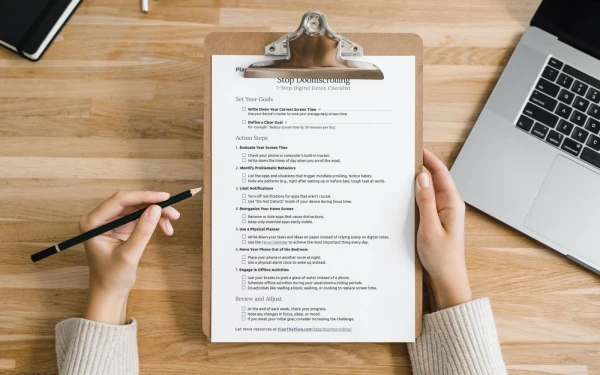
Follow this checklist to reduce doomscrolling and reclaim your time with effective digital detox strategies.

Boost productivity by focusing on one key task per day. Try the free Focus Calendar tool to plan your tasks and track progress. Simple, effective, printable.

A 3-step system for managing Slack interruptions without missing important messages. Stop context switching and protect your deep work time as a developer.